Apps
Apps let you run an AI-Flow workflow from a structured form instead of opening the workflow canvas. Inputs, outputs, run controls, and estimated costs are presented in a focused interface that works well for repeated tasks and smaller screens.
Open Apps in AI-Flow to access the current catalog and your own runnable workflows.
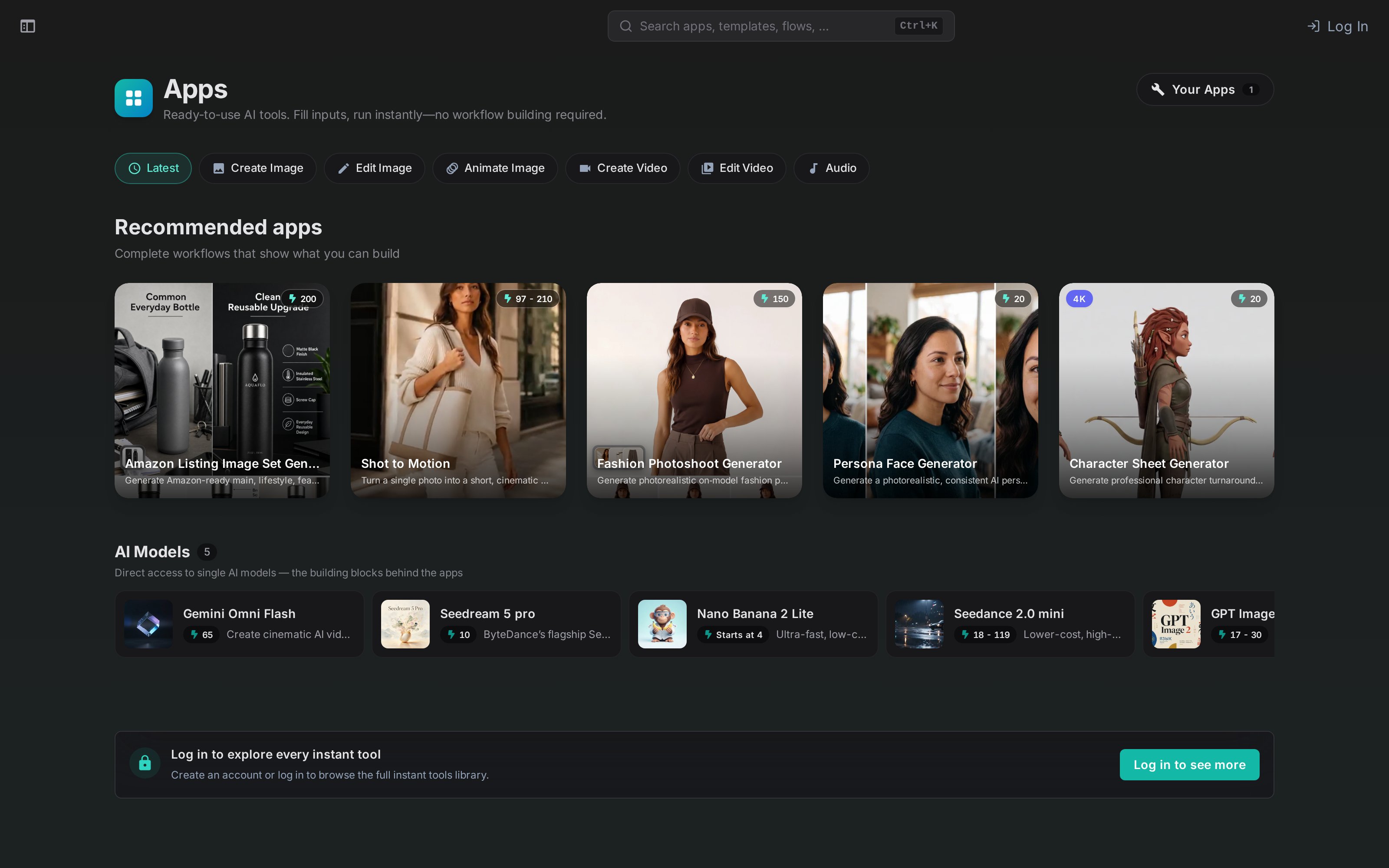
Browse the default Apps
The default catalog contains two complementary sections:
- Recommended apps are complete workflows designed around a practical result.
- AI Models provide direct access to individual models, the building blocks used by the larger Apps.
Use the category chips to focus on image creation, image editing, animation, video, or audio. App and model cards display an estimated credit cost when one is available.
Open and run an App
Select an App to open its launcher. The current inputs appear alongside an output area, so you can configure and run the workflow without manipulating nodes or connections.
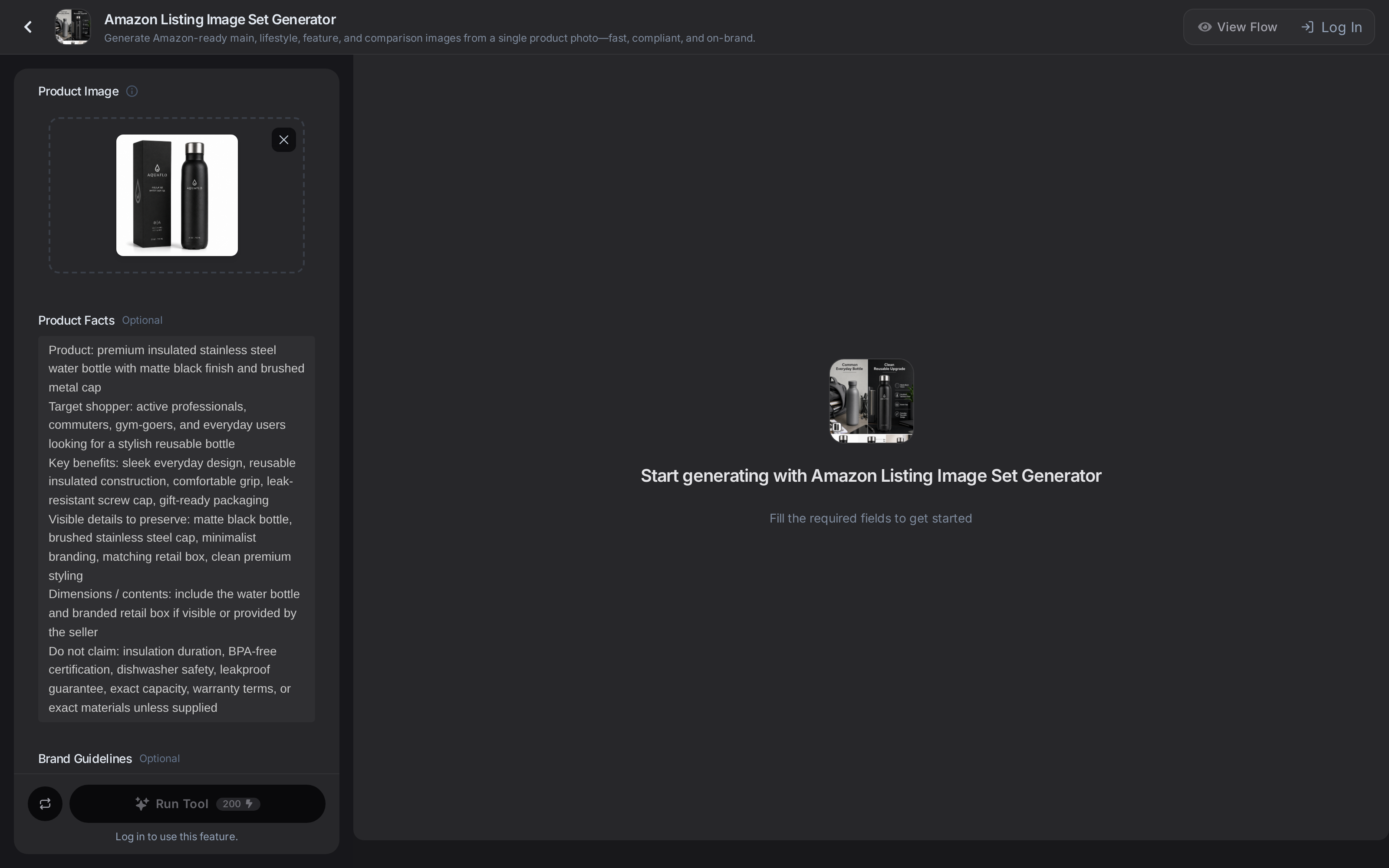
The exact form depends on the underlying workflow. It can contain text fields, file or image uploads, choices, advanced settings, and a run-count control. Before running:
- Complete the required fields.
- Review the estimated cost shown with the run button.
- Log in and configure any required provider credentials or credits.
- Run the App and inspect each named output.
For default Apps, View Flow lets you inspect the workflow that powers the form. When available, Save & Customize creates an editable copy in your flows.
Run your own workflows from Your Apps
Select Your Apps in the top-right corner of the Apps page to access workflows you have built, plus runnable workflows shared with you.
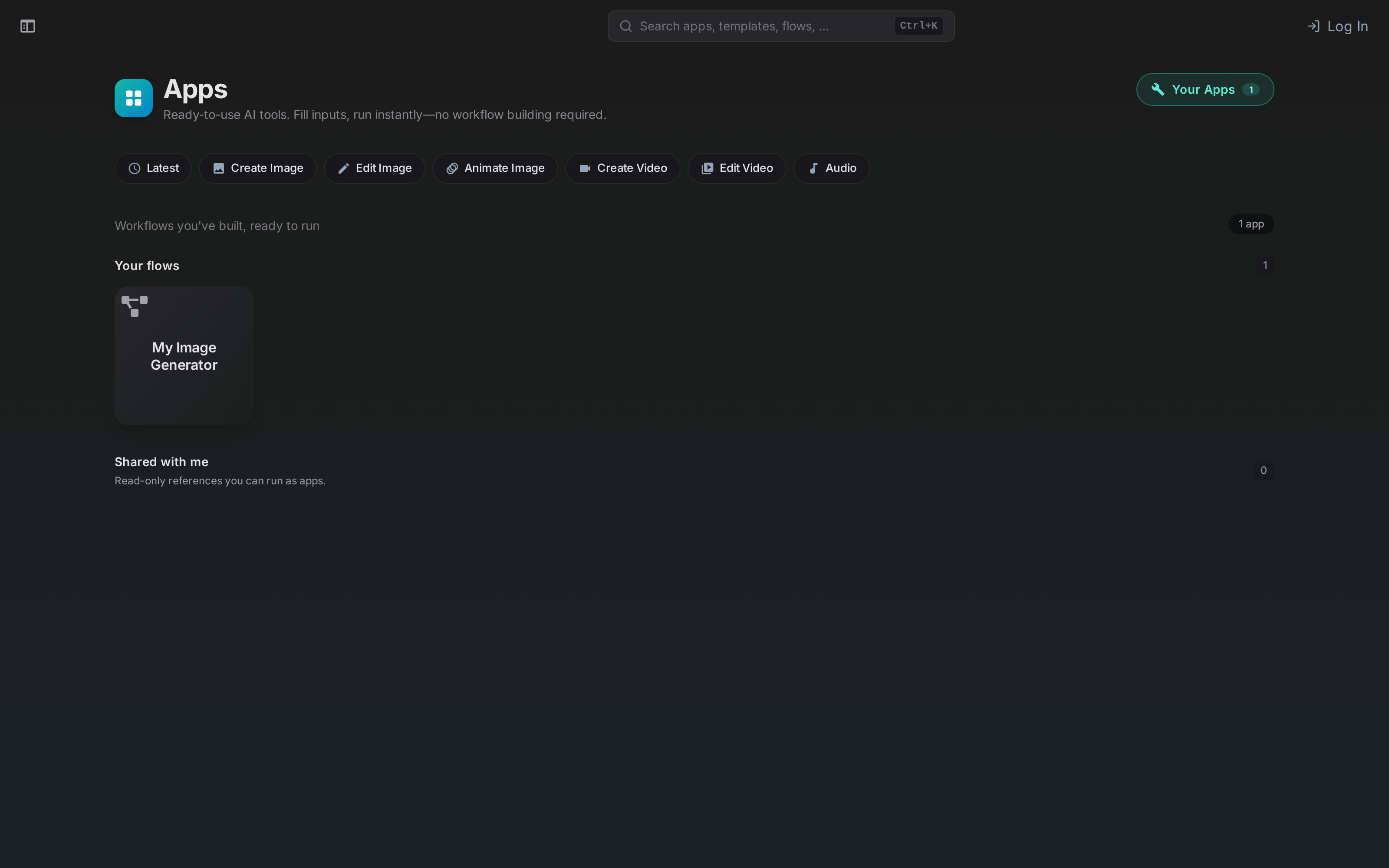
To make a useful custom App, define its public interface with Flow Input and Flow Output nodes:
- add one Flow Input for each value the user should provide;
- give every input a clear, unique name and a sensible default when possible;
- enable file mode for inputs that should receive an uploaded file or a media URL;
- connect the workflow result to one or more named Flow Output nodes;
- save the workflow with a recognizable name.
The App launcher is generated from those nodes. Changes to the underlying workflow are reflected the next time you open it from Your Apps.
Workflows shared with you are listed separately under Shared with me and remain subject to the permission granted by their owner.
Continue with Instant Actions
When an App returns media, AI-Flow can display contextual Instant Actions below the focused result. These actions pass the current result into another App, so you can continue working without downloading and uploading the same file manually.
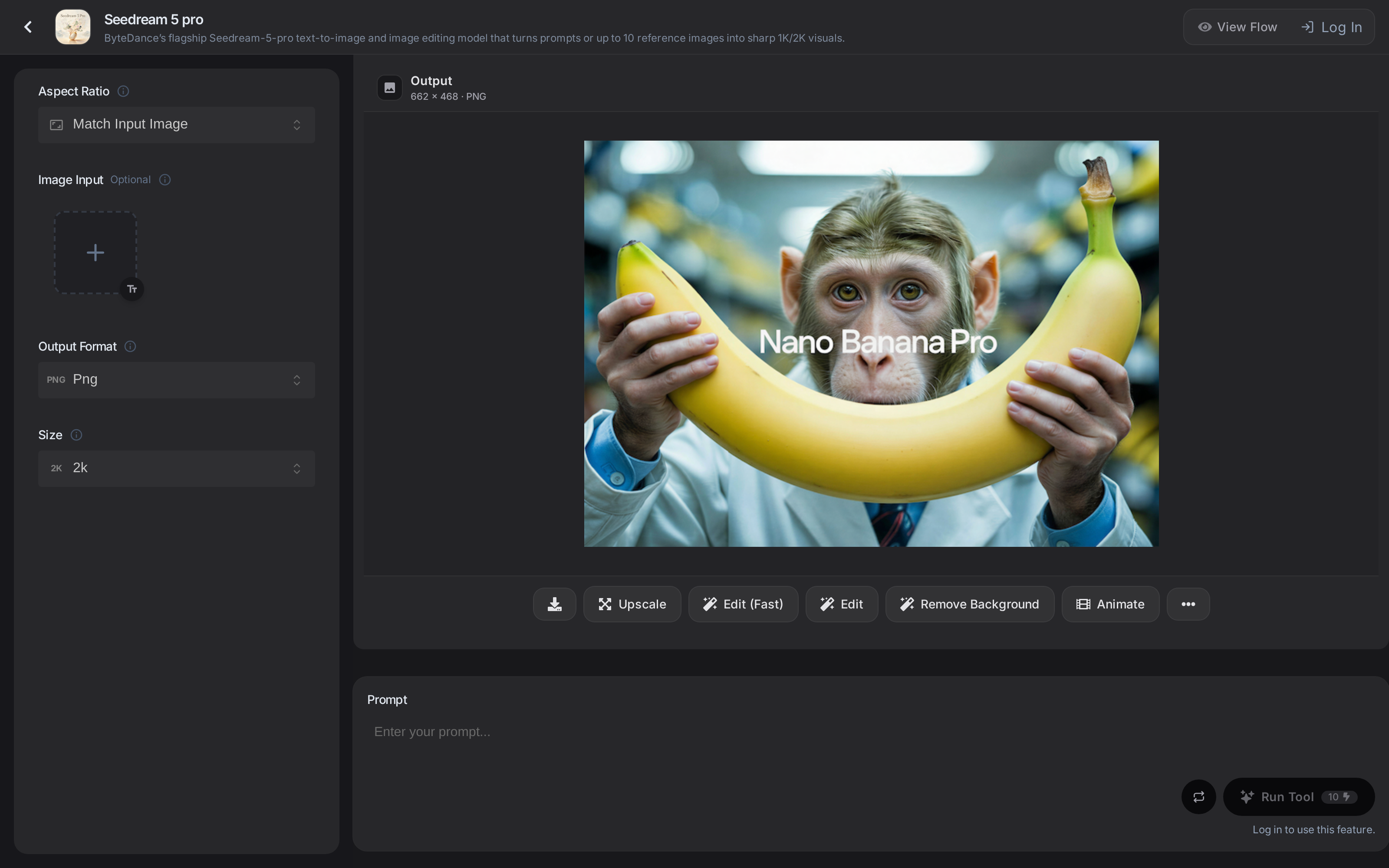
Available actions depend on the output type and the current surface. For example:
- image results can expose actions such as Upscale, Edit, Remove Background, or Animate;
- audio results can be downloaded or passed to a transcription App;
- video results can be edited or reused as a motion reference;
- additional actions are available from the … menu when the list is longer than the available space.
Selecting an Instant Action opens the target App with the media input already filled. Review its remaining inputs and estimated cost before running the next step.
Apps inside workflows
An App is still a workflow. You can reuse the same interface inside a larger flow by selecting it as a Subflow. This makes it possible to validate a workflow as an App first, then compose it into a more advanced automation later.
Use a template when you want an editable starting graph. Use an App when you want the shortest path from inputs to a result.