Templates
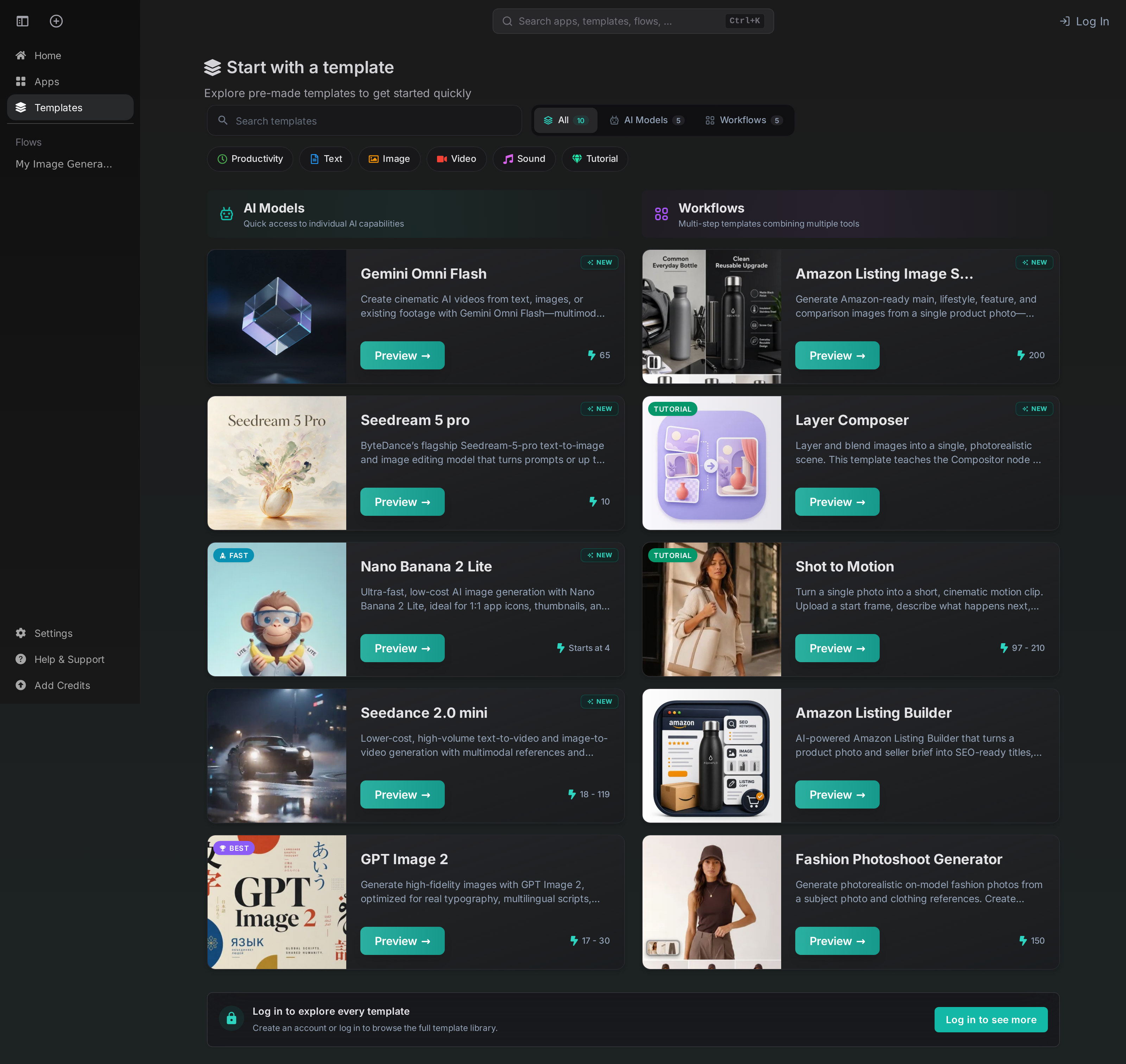
Templates are ready-made workflows that you can open in the editor and adapt to your own needs. They are useful when you want a working starting point without building the entire graph from scratch.
Open Templates in AI-Flow to browse the current library.
Browse the library
The library is split into two types:
- AI Models provide quick access to a single AI capability.
- Workflows combine several nodes into a complete, multi-step process.
Use the search field, the type selector, and the category filters to narrow the list. When available, a card also displays its estimated credit cost per run and badges such as New, Fast, or Tutorial.
Preview a template
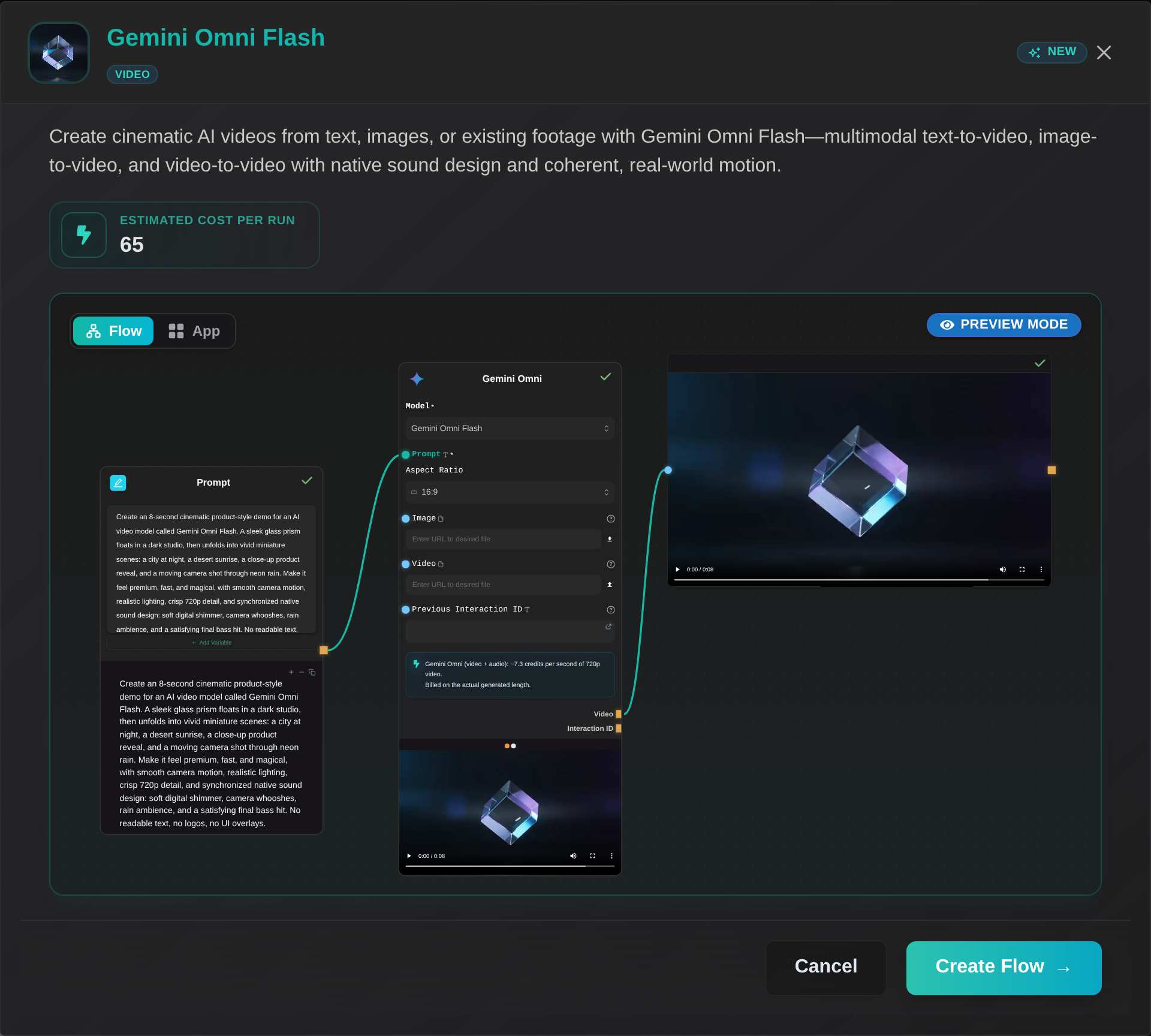
Select Preview to inspect a template before adding it to your flows. The preview displays its description, estimated cost, and a visual overview of the graph.
Some templates provide two versions:
- Flow shows the complete graph intended for editing on the canvas.
- App shows the streamlined graph used by the form-based Apps experience.
Switch between them in the preview to choose the version that best matches your goal.
Create and customize a flow
- Choose a template and open its preview.
- Select the Flow or App version when both are available.
- Click Create Flow to add an editable copy to your flows.
- Review the required inputs, credentials, and model settings.
- Run the flow, then adjust nodes, connections, prompts, and outputs as needed.
Creating a flow from a template gives you an independent copy. Future updates to the library template do not overwrite the flow you have customized.
If the App version is selected, templates that support it can also be opened directly with Open as App instead of being copied to the editor.
Templates or Apps?
| Use | Best choice |
|---|---|
| Learn how a workflow is assembled | Template |
| Customize nodes, prompts, or connections | Template |
| Run a prepared workflow from a simple form | App |
| Reuse one of your own workflows without opening the canvas | Your App |
See Apps to learn how to run default Apps, expose your own workflows as Apps, and continue from a result with Instant Actions.
Practical tips
- Start with a workflow template when you want to understand or change the whole process.
- Start with an AI Model template when you only need one capability and want full access to its node settings.
- Check the estimated cost before creating or running a template, especially for video or multi-step workflows.
- Read notes placed on the canvas: tutorial templates often include configuration and customization guidance next to the relevant nodes.