Bring Your Own Keys (BYOK)
AI-Flow works with platform credits out of the box. You can also connect your own provider API keys so compatible nodes use your provider account directly. This is useful when you already have provider credits, want vendor-side usage controls, or need access to models enabled on your own account.
You can mix both approaches in the same workflow: nodes with a connected key use it, while other nodes continue to use AI-Flow credits when supported.
Add an API key
- Log in to AI-Flow and open Settings.
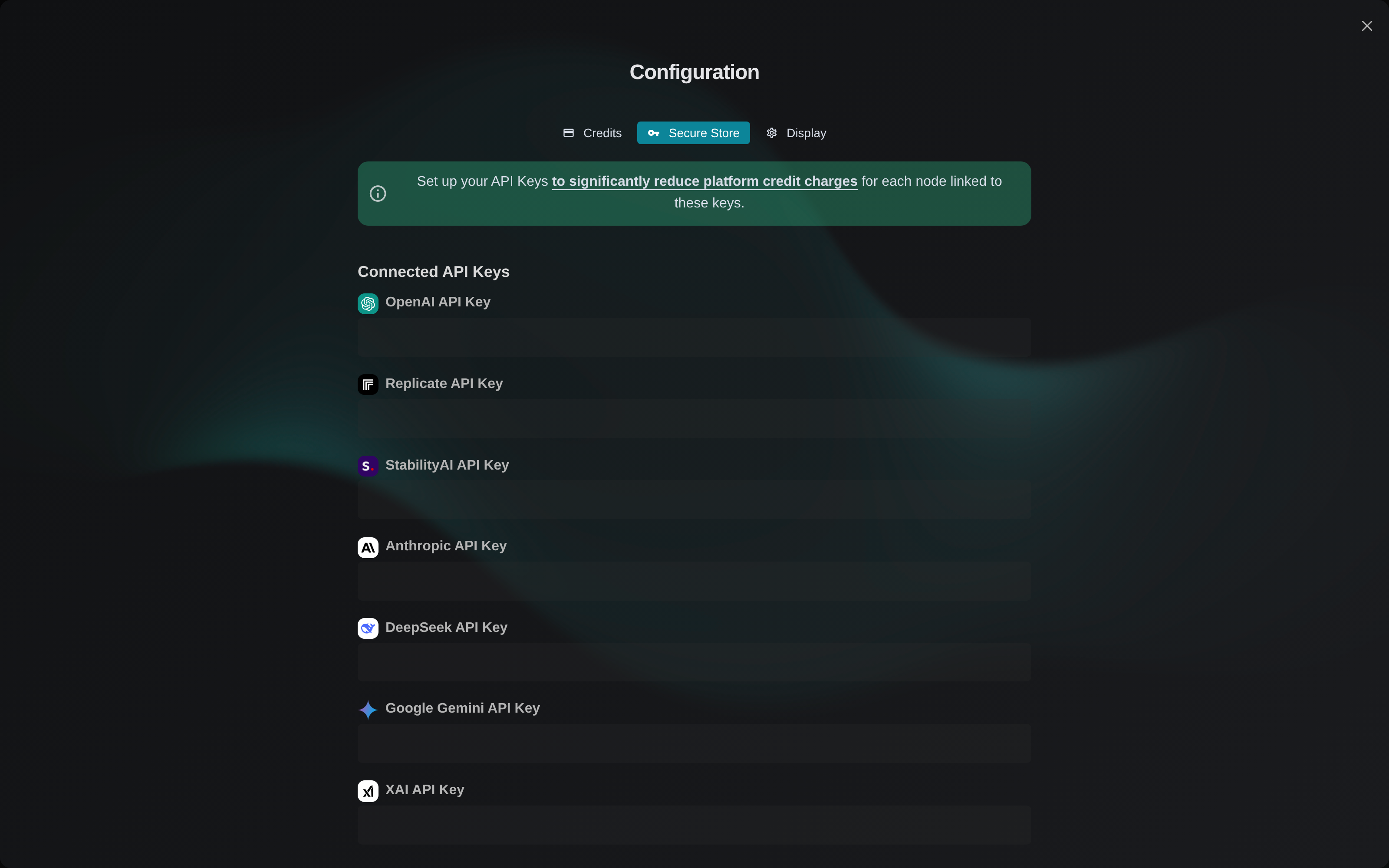
- Select the Secure Store tab.
- Paste the key into the matching provider field.
- Select Validate to save the change.
- Return to your workflow and run the node again.
Never paste a key directly into a prompt, workflow name, or public template.
Supported providers
The Secure Store currently includes keys for:
- OpenAI
- Replicate
- Stability AI
- Anthropic
- DeepSeek
- Google Gemini
- xAI
- fal.ai
- ElevenLabs
- OpenRouter
Integration tokens for Airtable and Notion are managed in the same place. Availability still depends on the models, permissions, quota, and billing enabled in your provider account.
Billing with your own key
When a node uses your key, the AI provider bills the model usage to your provider account. AI-Flow may still charge a small amount of platform credits for resources it supplies around the execution. The node UI shows the applicable cost before you run it.
BYOK is optional. If you prefer not to manage provider accounts, keep using the hosted credit path where it is available.
Where keys are stored
By default, saved secrets are encrypted and associated with your AI-Flow account so they can be available across your signed-in devices. They are transmitted over HTTPS and are not displayed again in readable form.
To remove a saved key, clear its field and select Validate again.
Troubleshooting
If a node rejects a connected key:
- confirm that the key is in the field for the same provider as the node;
- check the provider account's quota, billing status, model access, and regional restrictions;
- select Validate after changing the key;
- retry with a newly created provider key if the old one was revoked;
- check the node's own documentation for provider-specific requirements.
Next, see How Nodes Work or follow the Getting Started guide.